# AI menu configuration
AI menu configuration, used to display the menu content when clicking AI in the top toolbar of the editor, and the AI options in the AI bubble menu that pops up after selecting text.
## Toolbar menu
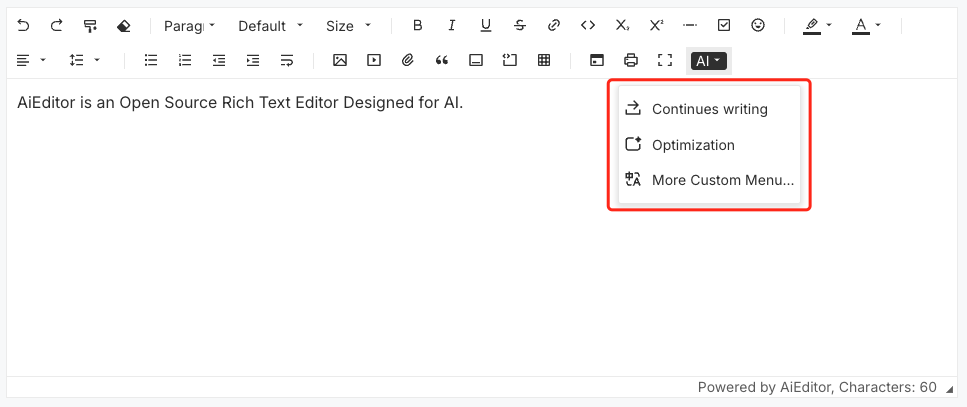
Toolbar menu configuration sample code
```typescript
new LinwitDocEditor({
element: "#aiEditor",
ai:{
// models:{...]
menus:[
{
icon: ``,
name: "AI continues writing",
prompt: "Please help me further expand on this passage.",
text: "focusBefore",
model: "auto",
},
{
icon: ``,
name: "AI Optimization",
prompt: "Please help me optimize the content of this passage and provide the result.",
text: "selected",
model: "auto",
},
]
},
})
```
- **icon**: Icon used for menu display, currently only supports SVG configuration. It's recommended to use SVG icons provided by https://remixicon.com to ensure consistency with LinwitDocEditor's icon style.
- **name**: Name of the AI menu.
- **prompt**: AI prompt message.
- **text**: Text content, supports `"focusBefore"` and `"selected"` options; `"focusBefore"` indicates getting the text content before the current focus, `"selected"` indicates getting the currently selected text content.
- **model**: The AI LLMs used. Currently, it supports `chatGPT`, `spark` (Spark Big Model), `wenxin` (Wenxin Yiyan) and `custom` (custom type).
- **onClick**: Customize the click event of the current menu item.
**Note:** When `model` is not configured or configured as "`auto`", the first configured large language model will be automatically selected.
## Bubble menu

Configuration example code:
```typescript
new LinwitDocEditor({
element: "#aiEditor",
ai:{
// models:{...]
bubblePanelMenus:[
{
prompt: `{content}\nPlease help me optimize this content and return the optimized results directly.`,
icon: ``,
title: 'improve-writing',
},
{
prompt: `{content}\nPlease check this paragraph for spelling or grammatical errors.`,
icon: ` `,
title: 'check-spelling-and-grammar',
},
'',
{
prompt: `{content}\nPlease help me translate the above...`,
icon: ``,
title: 'translate',
},
{
prompt: `{content}\nPlease help me summarize the above content and return the summary results directly`,
icon: ``,
title: 'summarize',
},
]
},
})
```
- **prompt**: AI prompt
- **icon**: Icon used for menu display, currently only supports svg configuration, svg icon is recommended to use the icon provided by https://remixicon.com to ensure consistency with LinwitDocEditor icon style.
- **title**: Name of the AI menu